A workspace for coding with agents

Agents write the code. You stay the author.

Run the agents you already use in one repo. Every line knows which agent wrote it, so you commit only yours.
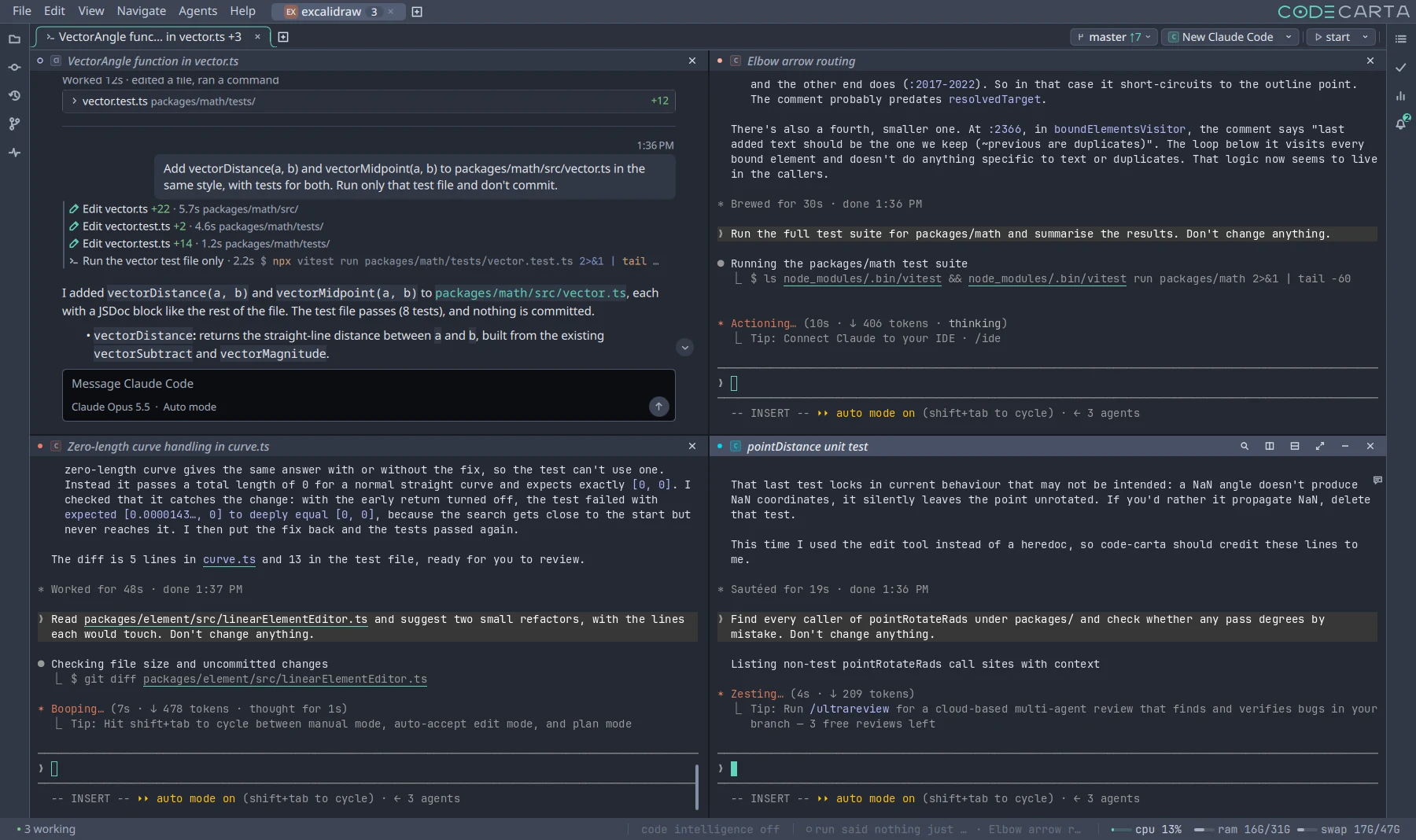
Four Claude Code agents in a two by two grid in one Code Carta window, all in one checkout of Excalidraw. One, shown as a conversation, has added two vector functions with tests, each edit listed with the lines it added. The other three are working in their terminals: running the math package's tests, suggesting refactors, and checking every caller of a rotation helper.

Runs the agents you already use Claude CodeCodexGemini CLICopilot CLI GrokOpenCodeKilo Code

Parity

Git sees one change. Parity sees who wrote each line.

So your agents share one checkout and each commits only its own lines. No worktree per agent, and nothing to merge.

How every line is named →

Code editor

See what they did, in the code

Click a path in an agent's output and the file opens at that line. Around it, a full editor: language servers for 107 languages, go to definition, rename, vim mode and find in files.
The editor →

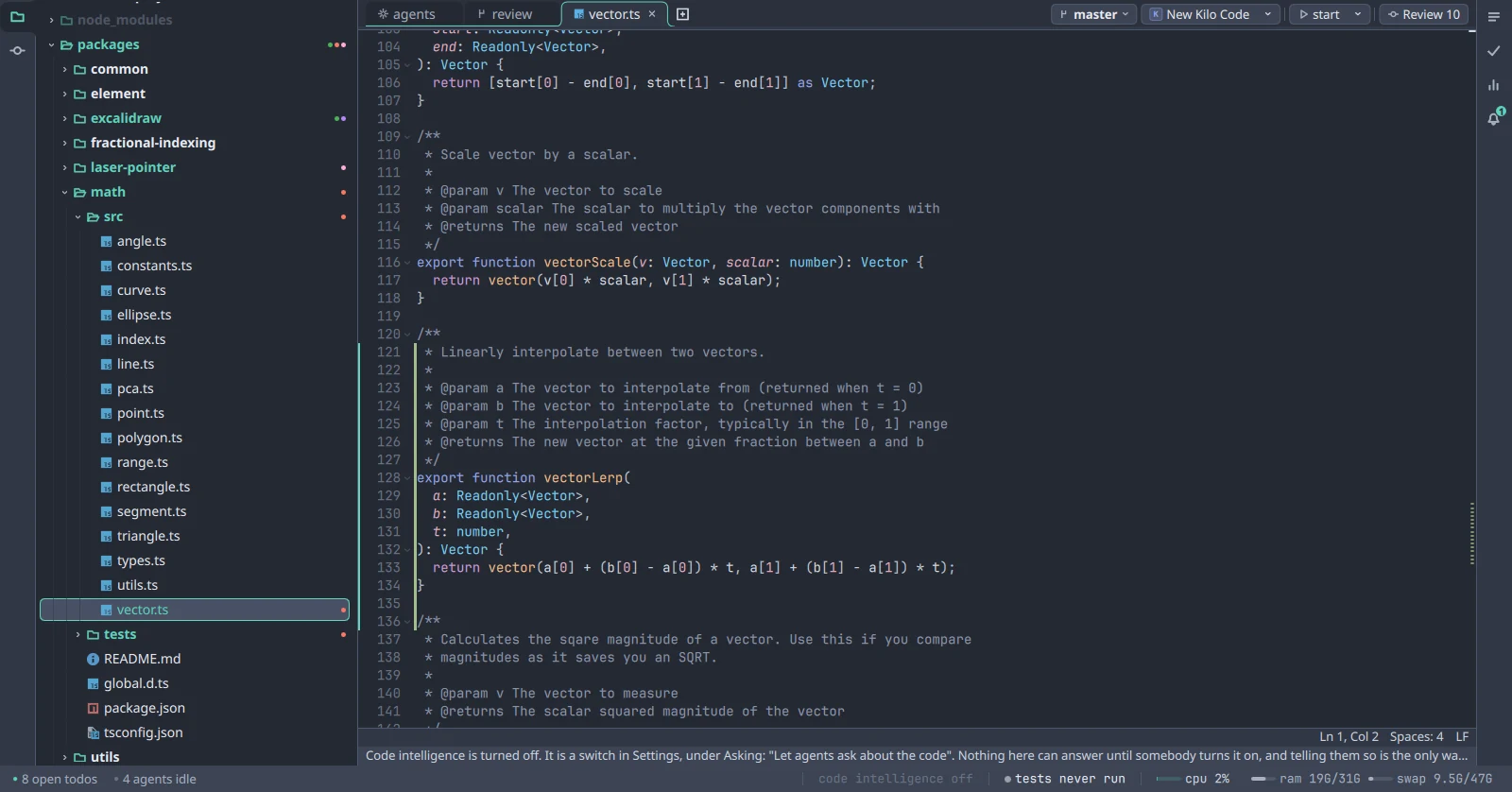
The file tree beside an editor open on vector.ts, with a change bar in the gutter beside the function an agent just wrote.
A function an agent just wrote, opened from a link in its output.

Todos

Hand a todo to any agent

Pick an agent and it starts on the todo. When it is done, the todo lists its commits. Agents can read and keep the list too.
Todos →

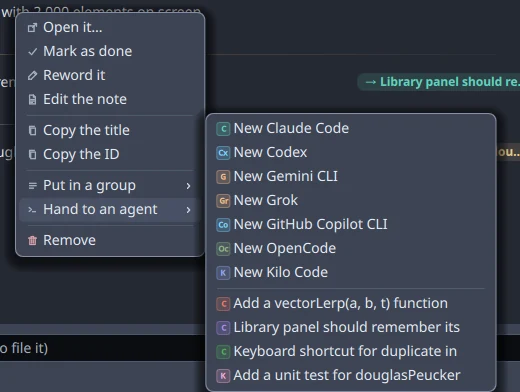
The row menu on a todo, open on Hand to an agent, listing Claude Code, Codex, Gemini CLI, Grok, GitHub Copilot CLI, OpenCode, Kilo Code, and the four agents already running.
Every agent you have installed, plus the ones already running.

Tests

Every test your agents run, in one place

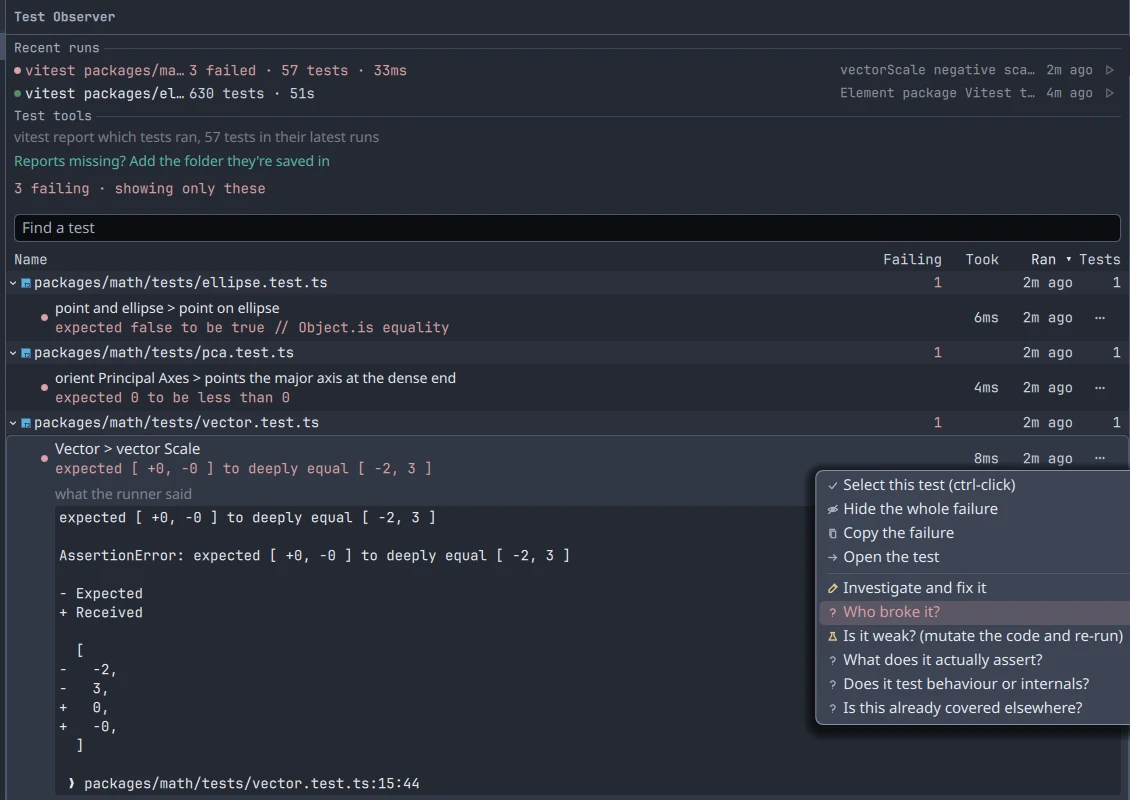
Code Carta records each run, named for the agent that ran it, with the failures first and their full output. Then ask an agent who broke one, or whether a test would catch a bug.
Tests →

The Tests panel on the Excalidraw repo: two recent runs, each named for the agent that ran it, three failing tests with one failure open in full, and the menu of questions for an agent: who broke it, is it weak, what does it actually assert.
Two agents, two suites: one passed, one broke three tests.

Task runner

Your project's commands, as buttons

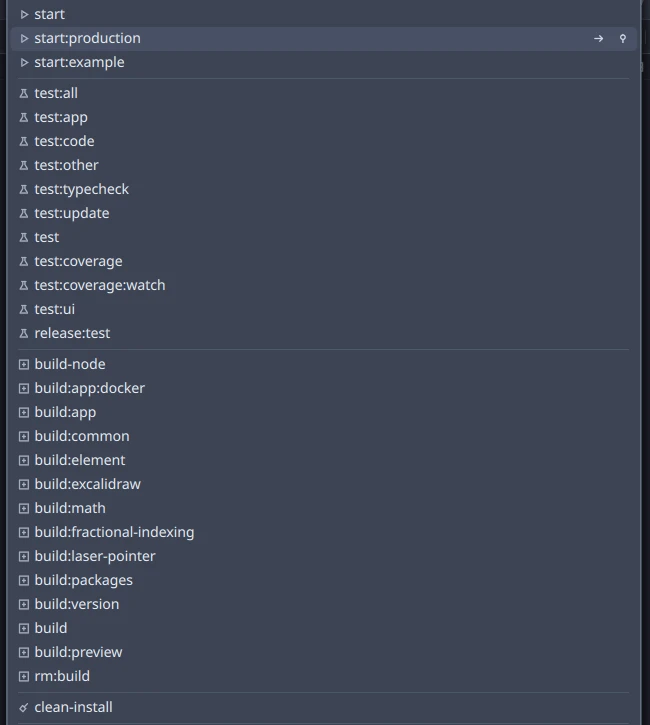
Build, test and serve, read from your justfile, Taskfile, package.json, Cargo or Makefile. Press one and it runs in its own terminal panel, in the same window as your agents.
The task runner →

The task menu on the Excalidraw repo, its package.json scripts grouped into start, test, build and clean, with run and pin buttons on the highlighted one.
Excalidraw's package.json scripts, found with nothing set up.

Phone app

Your agents, from your phone

Every agent's real terminal on your phone, with Pro. Pair with a QR code and answer whichever one is waiting.

App Store coming soon Google Play get it
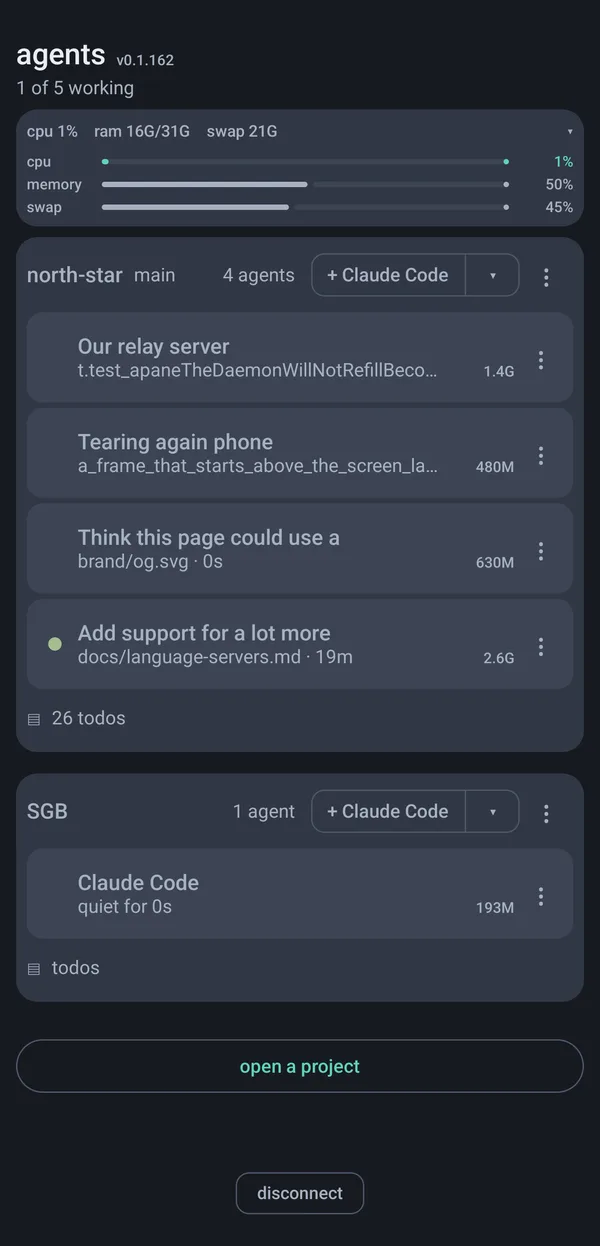
The phone app's agents screen: the machine's CPU, memory and swap, then the Excalidraw project with three Claude Code agents, each named for its task, one of them working.
Every agent on the machine, by project.
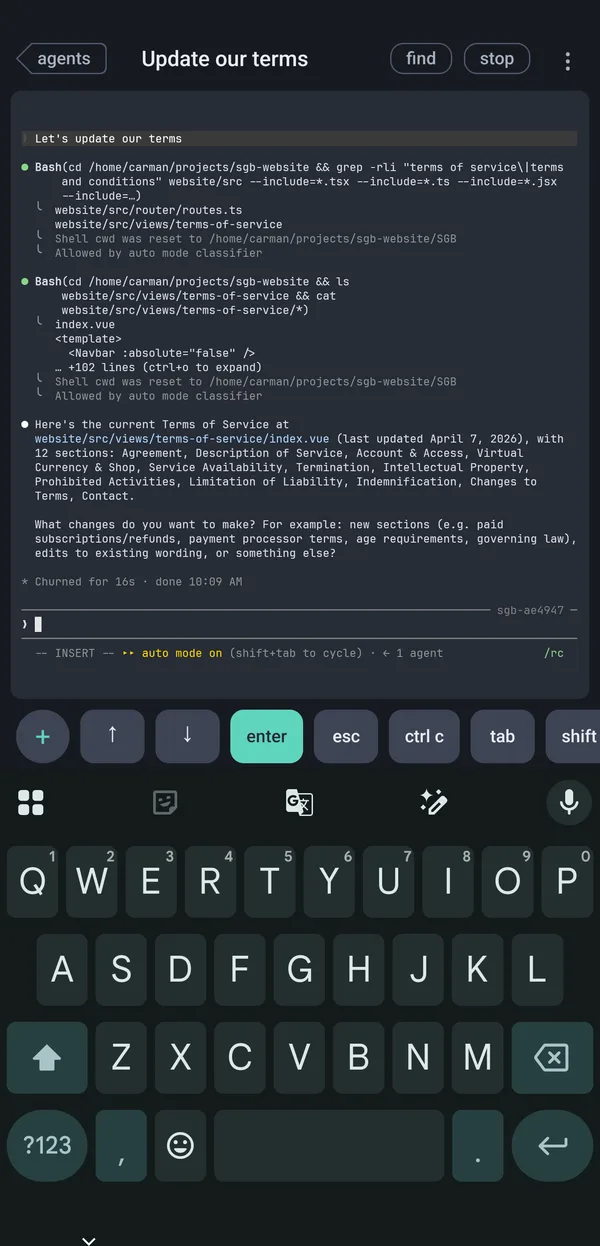
Claude Code's terminal on the phone, done with a fix and offering to commit only its own three files, with the answer typed in and a row of terminal keys above the keyboard.
Answering an agent, with the keys a terminal needs above the keyboard.

Your code

We never see your code

It stays on your machine

Code Carta runs where your code is, and your code never leaves it.

Your own accounts

Agents talk to their vendors with your own credentials. We're not in the middle.

An encrypted phone link

End to end. Our relay sees only ciphertext.

What does go online, and how to turn it off, is in the privacy policy. It is one page.

Free, for as many agents as you run

No account needed, and your code stays on your machine.
Parity

Parity

Parity knows who wrote every line. That's what lets several agents share one checkout without anyone's work ending up in the wrong commit.

Live
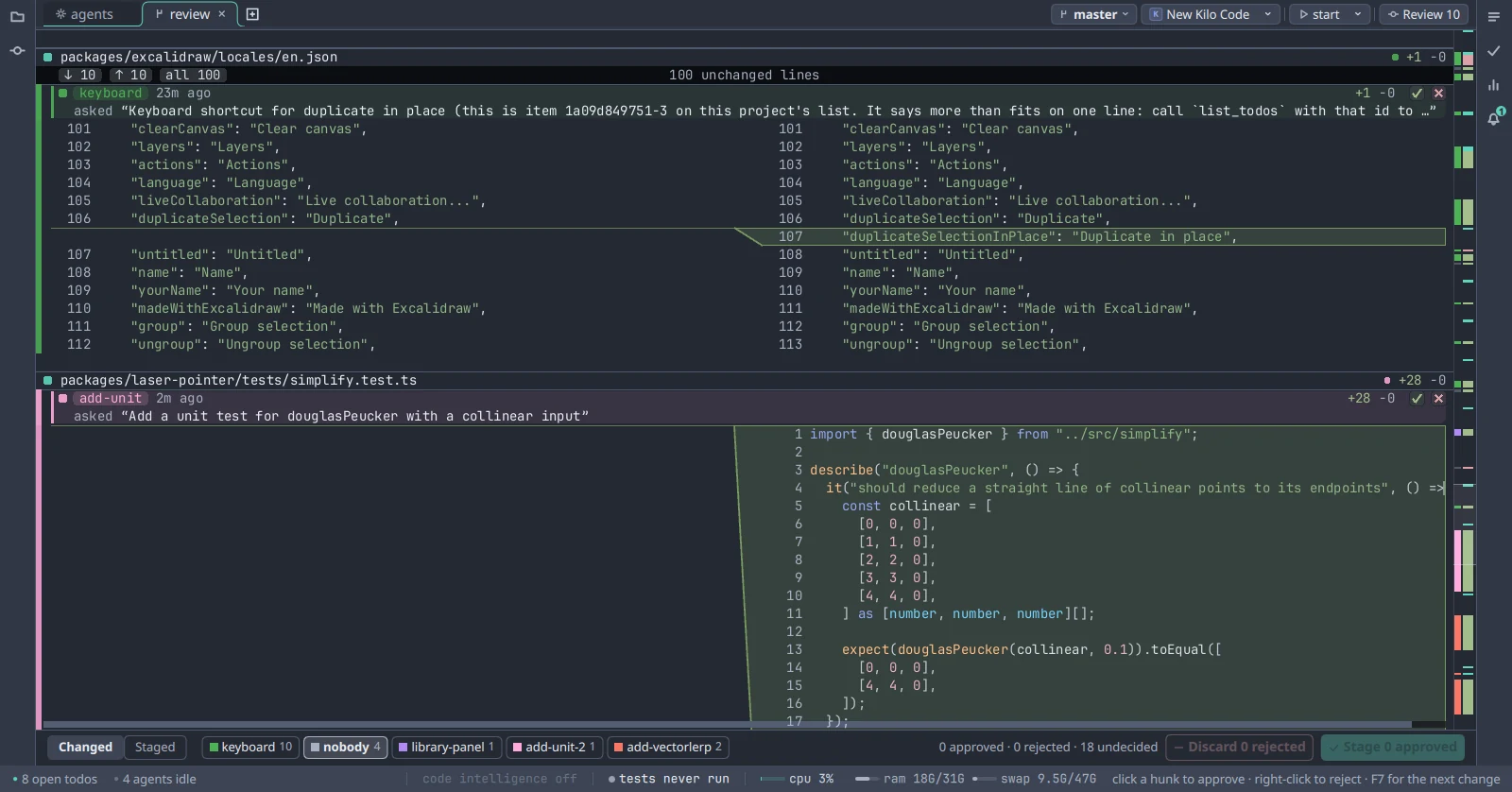
A review across several files, every change labelled with the agent that made it.
A real, unedited session in the Excalidraw repo: four agents across ten files, each change tagged with its agent and prompt.
Line by line

Line by line

Git stages by hunk, so two agents' edits next to each other become one change. Parity tracks each line instead.

Run a formatter, move a function, rename a file, or close the agent that wrote it. Every line still knows who wrote it.

Certainty

When it isn't sure, it says so

If it can't prove who wrote a line, it leaves that line out of the commit and tells you which one. You decide whose it is.

Promises

What you can count on

Your commit is your work

Commit from Code Carta and you take your own lines, not everyone else's in the file.

A formatter can't steal a file

Reformatting doesn't move authorship to whoever ran it.

Work outlives its agent

Close an agent mid-task and its uncommitted lines are still there, still named, yours to keep or drop.

Agents know who changed their file

When another agent edits a file one is working in, it is told which agent did.

Trust

How we know it holds

Parity is tested against real git repositories, and Code Carta itself is built with it every day.

Or check it yourself, on a repository you know: the two-minute test →

Pricing

Free for personal use, with every agent you run.

No token charges, no per-agent seats. Pay for the phone, for work use, and for company controls.

Plans

Free

$0forever

For personal use, with no account. Work use needs a Teams seat after 30 days.

  • As many agents as you run
  • The whole parity engine
  • Review, test observer, todos and editor
  • One-click language servers for 65 languages
  • No time limit, no account

Pro

$10per month

For one person, for personal use.

  • The real terminal of every agent, on your phone
  • See which one is waiting on you, and answer it
  • Pair with a QR code, no SSH or VPN setup
  • End-to-end encrypted access to your machine

Teams

$25per person per month

Choose how many seats at checkout.

  • Use Code Carta for work
  • Everything in Pro, for every seat
  • One todo list for the whole team: see which items are taken, and who finished each
  • Shared parity across people (coming soon)
  • Invite people by email

Enterprise

from $49 per person per month

Invoiced, on terms that suit you.

  • Everything in Teams
  • Run the team server on your own network
  • Policy from a file: relay, service, remote access
  • Invoicing on your terms

USD, tax at checkout. Billed by Paddle. Cancel any time.

Downloads

Windows, Linux, macOS and the phone: the download page.

Download

Code Carta

Free for personal use. Every agent, the whole parity engine, no account.

Elsewhere
macOS Apple silicon

Opening it the first time

A disk image. Not notarised yet, so the first open goes through System Settings, Privacy & Security, Open Anyway.

iPhone and Android

The companion app

Pro: every agent's real terminal on your phone.

App Store coming soonGoogle Play get it

Docs

What is not obvious.

Three things you would not find by clicking around.

Tasks

Which tasks are found.

  • A justfile or Taskfile that yields tasks hides the other three, so one command is one button. A tree with both runners gets both.
  • Cargo offers build, test, check, and run only. Never fmt or clean.
  • Missing just or task? The chip says so and links to it.
Todos

Attaching, ordering, and the file.

  • Attach: a screenshot from the phone, or Attach… on the row. Drop or paste a file anywhere on the card. The agent gets the path.
  • Order: drag. Drop under a heading to file it there too. Ticking is the only way a row moves to Finished.
  • The file: .code-carta/todos.json in the project, beside your tasks and test runs. Commit it or ignore it; both work. Every window and the phone read the same file.
Licensing a computer

Sign in once per machine.

  1. Settings › Plan › Sign in. Your browser opens.
  2. Say yes. The plan shows up in seconds and renews itself.
  3. No browser there? Paste a seat's code in the same place.

One seat covers all your own computers. Offline, a plan keeps working for thirty days.

Settings

One file, every setting.

Code Carta keeps everything you choose in settings.json. Edit it by hand or ask an agent to.

Where it is

settings.json, in the config folder.

Linux~/.config/code-carta/settings.json
macOS~/.config/code-carta/settings.json
Windows%APPDATA%\code-carta\settings.json
Portable copydata\config\settings.json beside the program

Edits apply live

Save the file and a running Code Carta applies the change in every window, with no restart. A key left out takes its default. If the file is not valid JSON, Code Carta keeps the settings it had and says so in its log; fix the file and save again.

Your vimrc sits beside it. So do licence and pairing.key, which are secrets and not settings.

Not for editing

The state folder is Code Carta's own.

What Code Carta remembers for itself, such as open projects, window layout and installed language servers, lives in the state folder. Code Carta rewrites those files as it runs, so a change made there is undone. Anything you would want to choose is in settings.json.

Linux and macOS~/.local/state/code-carta/
Windows%LOCALAPPDATA%\code-carta\
Portable copydata\state\ beside the program

For administrators

A machine's owner can take choices away with policy.json, which only an administrator can write: /etc/code-carta/policy.json on Linux and macOS, %ProgramData%\code-carta\policy.json on Windows. {"remote_access": false} forbids reaching the machine from a phone, whatever settings.json says.

Code Carta

What every window shares: agents, shells, the phone, language servers.

agents

array of objectsdefault []

Agents to offer beside the ones Code Carta knows. An entry whose id matches a built-in agent replaces it, so a wrapper script called claude means the wrapper.

agents[].id

stringrequired

A short stable name, used to remember which agent was chosen.

agents[].name

stringrequired

What the agent chooser shows.

agents[].command

stringrequired

A program found on PATH, or an absolute path taken as given. ~ is your home folder.

agents[].ask

array of strings

Arguments that run the agent once, non-interactively, with a prompt appended. Lets Code Carta ask this agent for things like commit messages.

agents[].renders_transcript

booleandefault false

The agent redraws its whole conversation in place instead of scrolling it, so Code Carta gives it a taller screen to keep more of it visible. Leave this out unless scrolling back in its pane shows nothing.

shell

string or nulldefault null

The shell a plain pane runs. A name found on PATH (pwsh, fish) or a full path. Null uses $SHELL, then the platform's own (bash, or cmd.exe on Windows).

keep_serving

booleandefault false

Keep Code Carta running in the background with no window open, so the phone can start agents on this machine.

resume_on_restart

booleandefault true

After Code Carta restarts, reopen each pane's last conversation. False starts every pane fresh.

update_checks

booleandefault true

Ask codecarta.com whether a newer version exists. The request says which version and operating system this is, and nothing else: no id, no plan, nothing about you. It is made when a window opens, when one comes to the front six hours after the last answer, and when you press Check now.

set_up_tools

booleandefault true

Set up the agent tools Code Carta provides when the program they work with is found: Claude Code's conversation support, which lets you write to Claude Code from its Conversation view. Downloads Node.js from nodejs.org and the support's packages from registry.npmjs.org, each checked against a hash recorded in this build, into Code Carta's own data folder. Nothing is installed anywhere else.

code_intelligence

booleandefault false

Let agents ask a language server about the code (definitions, references, types). Uses memory for a server per project. Agents already running keep what they started with.

language_servers

object of stringsdefault {}

Where a language's server lives, when Code Carta cannot find it. Keyed by language id: {"rust": "/opt/ra/rust-analyzer"}. A path that does not exist is reported, not replaced by a guess.

servers_off

array of stringsdefault []

Languages whose server never starts, to save memory. Agents asking about these files are told it is switched off.

remote_access

booleandefault false

Allow the phone to reach this machine. While false nothing listens on the network and no relay is used. An administrator's policy.json can forbid it.

relay

string or nulldefault null

How a phone off this network reaches this machine. Null uses Code Carta's relay, which only ever sees encrypted traffic. An empty string uses none. host:port uses your own.

The desktop app

Under desktop: text sizes, the editor, shortcuts, the todo panel.

desktop.font_size

integer7 to 32default 14

Text size in the editor, diffs and search results, in pixels.

desktop.agent_font_size

integer7 to 32default 14

Text size in agent and terminal panes, in pixels.

desktop.interface_size

integer12 to 20default 15

Text size of the interface around the code, in pixels: menus, tabs, panel rows, the status bar.

desktop.focus_hides

array of stringseach one of "MenuBar", "ProjectTabs", "ToolRails", "ToolWindows", "StatusBar", "TabStrip"default ["MenuBar","ProjectTabs","ToolRails","ToolWindows","StatusBar"]

What focus mode puts away. An empty list hides nothing.

desktop.markdown_mode

stringone of "source", "split", "preview"default "split"

How a Markdown file opens: the source, the source beside the rendered page, or the rendered page alone.

desktop.auto_save

booleandefault true

Save a file a second after the typing stops, and when the keyboard leaves it. False saves only when asked, as vim does.

desktop.agent_face

stringone of "terminal", "conversation"default "terminal"

How a new agent pane is shown, once its conversation can be read: as its terminal, or as the conversation. Each pane can still be switched from the tab on its right edge.

desktop.conversation_activity_expanded

booleandefault false

Keep each command, read and edit visible in agent conversations instead of folding routine activity into summaries. Changed from the activity toggle below the terminal switch.

desktop.vim

booleandefault false

Vim keys in the editor. Your vim configuration is the vimrc file beside this one.

desktop.keys

objectdefault {}

Keyboard shortcuts.

desktop.keys.preset

stringone of "code-carta", "vscode", "visualstudio", "jetbrains", "vim-tmux"default "code-carta"

Which editor's shortcuts to start from: code-carta (Default), vscode (VS Code), visualstudio (Visual Studio), jetbrains (JetBrains) or vim-tmux (vim & tmux).

desktop.keys.bindings

object of stringsdefault {}

Shortcuts changed from the preset, by action id: {"closeTab": "Ctrl+W"}. Several keys are separated by "; ", and a chord by ", ". An empty string unbinds. Run carta-daemon --settings for the action ids.

desktop.keys.in_terminals

array of stringsdefault []

Shortcuts that go to the program in a terminal or agent pane instead of to Code Carta.

desktop.keys.vim_conflicts

object of stringseach value one of "ide", "vim"default {}

With vim keys on, which side gets a Ctrl chord both want: {"Ctrl+R": "vim"}.

desktop.todos

objectdefault {}

How the todo panel looks.

desktop.todos.stacked

booleandefault false

Put the finished todos under the open ones rather than beside them.

desktop.todos.show_timestamps

booleandefault true

Show when each todo was written down or finished.

desktop.todos.timestamp_format

stringone of "relative", "date", "datetime", "iso"default "relative"

How those times are written: relative (2h ago), date, datetime, or iso (2026-10-07 14:30).

desktop.todos.sort

stringone of "manual", "newest", "done", "alpha"default "manual"

The order todos are listed in: manual (as added, or as dragged), newest first, done (the finished ones by when they were finished, without their groups), or alpha (A to Z).

Shortcut actions

What a shortcut can do.

The ids desktop.keys.bindings takes: {"closeTab": "Ctrl+W"}.

Moving from another editor? Paste a prompt and an agent sets these from your old keys.

Navigate

paletteGo to anything
findActionFind an action
goToLineGo to line…
goToSymbolInProjectGo to a symbol in the project
goToFileGo to a file
findInFilesFind in files
nextTabNext tab
prevTabPrevious tab
closeTabClose tab
newTabNew tab
reopenTabReopen the closed tab
closeOtherTabsClose other tabs
closeTabsToRightClose tabs to the right
closeAllTabsClose all tabs
pinTabPin or unpin the tab
renameTabRename the tab
recentTabsRecent tabs
recentTabsBackRecent tabs, backwards
lastTabBack to the last tab
goToTab1Go to the first tab
goToTab2Go to the second tab
goToTab3Go to the third tab
goToTab4Go to the fourth tab
goToTab5Go to the fifth tab
goToTab6Go to the sixth tab
goToTab7Go to the seventh tab
goToTab8Go to the eighth tab
goToTab9Go to the ninth tab
recentFilesRecent tabs, as a list that stays open
jumpBackBack
jumpForwardForward
nextProjectNext project
prevProjectPrevious project
replaceInFilesReplace in files
nextProblemNext problem
prevProblemPrevious problem
goToDefinitionGo to definition
goToImplementationGo to implementation
findUsagesFind usages
goToSymbolGo to a symbol in this file
showProblemsProblems in the open files
renameSymbolRename everywhere…
quickFixFix this…

Application

openProjectOpen project…
closeProjectClose project
dockSettingsSettings…
keyHelpKeyboard shortcuts…
openMenusOpen the menu bar
quitQuit
toggleLoadShow or hide the machine load
toggleVimTurn Vim mode on or off
toggleFocusFocus mode: only panes and tabs
zoomInLarger text
zoomOutSmaller text
zoomResetReset text size
welcomeWelcome
planSign in, or see the plan
reportBugReport a bug
checkUpdatesCheck for updates
aboutAbout Code Carta
restartDaemonRestart the background service
restartDaemonElevatedRestart the background service as administrator

Tool windows

moveDockLeftMove tool window to the left edge
moveDockRightMove tool window to the right edge
moveDockBottomMove tool window to the bottom edge
moveDockCentreOpen tool window as a tab
moveDockOutMove tool window to its own window
dockExplorerFiles
dockSessionsSessions
dockTodosTodos
dockTestsTests
dockMessagesMessages
dockStatsProject
dockParityParity
addTodoAdd a todo…
dockGitCommit
hideDocksHide all tool windows

Agents

newAgentNew agent
addAgentKindAdd an agent…
nextAgentFocus next agent
prevAgentFocus previous agent
zoomAgentZoom the focused agent
flipFaceSwitch terminal and conversation
closeAgentClose the focused agent
renameAgentRename the focused agent
unzoomBack to the grid
prevTurnPrevious turn in the conversation
nextTurnNext turn in the conversation

Files

saveFileSave this file
findInFileFind in what you are reading
findNextNext match
findPrevPrevious match
replaceInFileReplace in this file
foldBlockFold this block
unfoldBlockUnfold this block
moveLineUpMove the line up
moveLineDownMove the line down
duplicateLineDuplicate the line
growSelectionExpand the selection
shrinkSelectionShrink the selection
selectLineSelect the line
jumpToBracketGo to the matching bracket
indentLinesIndent the line
outdentLinesOutdent the line
insertLineBelowNew line below
insertLineAboveNew line above
toggleCommentComment the line
toggleBlockCommentBlock comment
deleteLineDelete the line
joinLinesJoin with the line below
alignLinesAlign lines on a character
markdownViewSource, split or preview
foldAllFold everything
unfoldAllUnfold everything
suggestSuggest what could be typed
showHoverShow what this is
parameterInfoShow what this call takes
formatFileLay this file out

Find

findMatchCaseMatch case
findWholeWordWhole words only
findRegexRegular expression
findReplaceAllReplace every match
keepResultsKeep the results in a tab
openBesideOpen the result beside
nextResultNext result in the kept search
prevResultPrevious result in the kept search

Run

runTestHereRun the test under the cursor
runLastAgainRun the last test run again

Panes

copyTextCopy
pasteTextPaste
findInTerminalFind in this agent's output
splitRightSplit right
splitDownSplit down
closePaneClose pane
tileTabTile this tab evenly
toggleTerminalGo to the terminal, or back
newTerminalNew terminal
focusPane1Focus the first pane
focusPane2Focus the second pane
focusPane3Focus the third pane
focusPane4Focus the fourth pane
focusPane5Focus the fifth pane
focusPane6Focus the sixth pane
focusPane7Focus the seventh pane
focusPane8Focus the eighth pane
focusPane9Focus the ninth pane
focusPaneLeftMove focus left
focusPaneDownMove focus down
focusPaneUpMove focus up
focusPaneRightMove focus right
swapPaneLeftSwap with the pane on the left
swapPaneDownSwap with the pane below
swapPaneUpSwap with the pane above
swapPaneRightSwap with the pane on the right
resizePaneLeftMove the divider left
resizePaneDownMove the divider down
resizePaneUpMove the divider up
resizePaneRightMove the divider right

Review

nextChangeNext change
prevChangePrevious change
refreshDiffRefresh review
stageHunkKeep this change
commitReviewCommit the kept changes
nextFileNext file
prevFilePrevious file
stageFileKeep every change in this file
switchBranchSwitch branch
openHistoryHistory

Editing

undoUndo
redoRedo
cutCut
copyCopy
pastePaste
selectAllSelect all
caretLeftMove one character left
caretRightMove one character right
caretWordLeftMove one word left
caretWordRightMove one word right
caretLineStartMove to the start of the line
caretLineEndMove to the end of the line
caretTopMove to the top of the file
caretBottomMove to the bottom of the file
caretUpMove up a line
caretDownMove down a line
caretPageUpMove up a page
caretPageDownMove down a page
selectLeftSelect one character left
selectRightSelect one character right
selectWordLeftSelect one word left
selectWordRightSelect one word right
selectLineStartSelect to the start of the line
selectLineEndSelect to the end of the line
selectTopSelect to the top of the file
selectBottomSelect to the bottom of the file
selectUpSelect up a line
selectDownSelect down a line
selectPageUpSelect up a page
selectPageDownSelect down a page
deleteBackDelete the character before
deleteForwardDelete the character after
deleteWordBackDelete the word before
deleteWordForwardDelete the word after
deleteToLineEndDelete to the end of the line
The schema

For editors and agents.

Every key above comes from one JSON Schema: https://codecarta.com/settings/v1/schema.json. The file names it in its $schema key, so an editor that reads JSON Schema explains each key as you type and marks a wrong value.

On the machine itself, carta-daemon --settings prints where the file is and this whole page as text. That is the command to point an agent at.

Support

Help, from the people who wrote it.

Email support@codecarta.com. We answer within two business days, and security reports within one.

Report a bug

The fastest way is in the app

On the desktop, open Help, then Report a bug. On the phone, use Report a bug too. Either one attaches your logs and shows you what's in them before you send. Reports are deleted after thirty days.

Report a bug

Written up from the logs. You read it and send it. report_bug

Agent prompt
This uses code-carta's MCP tools. If you don't have them, stop and tell me to connect you under Settings > Agents in Code Carta.

Help me report a bug in Code Carta itself. First ask me what went wrong.

1. Call code-carta's `setup` tool with topic `account`: it says the version and where the logs are. Read the end of each log around the time it happened.
2. Write a short report: what I was doing, what I expected, what happened instead, and the log lines that show it. Show me the draft and let me change it.
3. When I agree, call `setup_change` with action `show_page`, page `bug_report` and the draft, and tell me to read it there and press Send: the logs go with it.

Send nothing yourself. Nothing is sent until I press Send.

Scroll to read more ↓

By email, include:

  • The version (Help › About) and your platform.
  • What happened, and what you expected.
  • The log, from ~/.local/state/code-carta/ on Linux and macOS, or %LOCALAPPDATA%\code-carta\ on Windows.

Crashes on start? Run it once with CARTA_DEBUG=1 set and send what it prints.

Request a feature

Tell us what you were trying to do

Email with Feature in the subject. Tell us what you were doing and what you looked for. Every request gets an answer, including whether it's planned.

Security

Found something? Tell us first

Email with Security in the subject; we reply within one business day. No action against good-faith research, credit if you want it, and word when it's fixed. If the app sends anything our privacy policy doesn't list, that counts too.

Billing

Plans, seats and charges

Sign in on the account page to see your seats and codes. To cancel, or with a question about a charge, email from the address on the account. Refunds: fourteen days on any payment, no reason needed.

Before you write

Offline is fine

A paid plan keeps working for thirty days without reaching us, then falls back to Free until it can.

Parity refused a commit

It tells you why, by file and by agent. How parity works.

About

I built the tool I needed.

Version control assumes every change belongs to a person who knows which change is theirs. Running several coding agents at once breaks that.

Who built it

Carman Babin

I've been writing software professionally for about twenty years. My day job is at a Fortune Global 500 company, building software that runs on drilling rigs. When that kind of code is wrong, a rig sits still, so I've learned to care a lot about knowing exactly what changed and who changed it.

On the side I run my own company, CJB Software. I've been writing Rust since 2019, along with C++, C#, Qt and Flutter. Over the years that's meant rig simulators, trading systems built on the Interactive Brokers API, and a pile of terminal tools I still use every day. Some of them are on my GitHub.

I built Code Carta to solve a problem I had myself. I've always been a Vim and tmux user, and I wanted to take my personal workflows to the next level. I don't like using git workflows all of the time, and I hate it when several agents step on each other and get in each other's way.

So one thing led to another, the rabbit hole got deeper and deeper, and I ended up with Code Carta.

I use AI agents every day. I just want to know which lines they wrote.

The problem

An agent committed somebody else's work

It staged the files it had touched. Those files also held another agent's half-finished tests. It pushed a branch that didn't build.

Nobody was careless. git add takes whole files, or hunks you split by hand. Other tools solve this by giving each agent its own copy of the repo and leaving you the merge. We made the unit smaller instead: the line. That's parity.

The fear

Agents write code faster than anyone reads it

The worry is that the code stops being yours: you didn't write it, you didn't watch the tests, and a month later you can't say why it works the way it does. It has a name now.

  • Comprehension debt: "the growing gap between how much code exists in your system and how much of it any human being genuinely understands." Addy Osmani, March 2026.
  • In a controlled study of 52 mostly junior engineers, the group coding with AI scored 50% on a quiz about the code they had just worked on. The group coding by hand scored 67%. Anthropic, January 2026.
  • 84% of developers use or plan to use AI tools; 33% trust what they produce. Stack Overflow developer survey, 2025.

Most tools answer with more autonomy. Code Carta keeps you close to the code instead. Every line is tagged with the agent and prompt behind it, every test run is recorded with who ran it, and every commit is linked to the todo it came from.

What we believe

What we believe

Asking beats guessing

Pinning work on the wrong author is the mistake that costs people an afternoon.

Copying the repo should be a choice

Use a separate copy when the work needs one, not just to run two agents on two bugs.

Claims should be checkable

Every number on this site was measured.

Terms of service

The terms you use Code Carta under.

Code Carta is made and sold by CJB Software LLC. Downloading, installing or paying for it means you agree to these terms. They are written to be read, and they say what the rest of this site says.

Last updated
The software
Money
Limits
The rest

Privacy policy

Nothing about you leaves your machine unless you send it.

This page lists every way Code Carta or this site can come to hold something about you. It is short because the list is short.

Last updated
The software
Accounts
Your rights

Account

One moment.

Checking whether you are signed in.

Checkout

Code Carta

Your order
Code Carta
Due today

Thank you

You're all set.

Your receipt is on its way from Paddle, our merchant of record. Your account shows the plan within a minute.

Next
  1. Download Code Carta if you have not already.
  2. Open Settings and choose Plan, then Sign in. Your browser asks whether to activate that computer; say yes, and the plan is on it.

Go to your account

Change plan, seats or card from your account page. A question about the charge? Reply to Paddle's receipt, or ask at paddle.net. Refunds follow our refund policy.

Refund policy

Try it free first. Then the rules are simple.

The Free plan is the trial, and it never ends. If you paid and want your money back, here is how.

Last updated
The rules
How

Agents

Every agent you use, side by side.

Claude Code, Codex, Gemini CLI and the rest, each in its own terminal, in one window and one checkout. Your own subscriptions, as they are.

Live
Four coding agents in one Code Carta window, each in its own terminal, in one checkout.
Four agents, one window, nothing to merge.
Start one

The ones you have, and your own

New agent lists every agent installed on this machine. Any other program that runs in a terminal can be added to it.

Add an agent

Any agent program, in the New agent menu. add_agent

Agent prompt
This uses code-carta's MCP tools. If you don't have them, stop and tell me to connect you under Settings > Agents in Code Carta.

Add an agent to the ones Code Carta offers to start. First ask me which program it is.

1. Call code-carta's `setup` tool with topic `settings` and query `agents`: it says where my settings.json is and what an entry in `agents` takes.
2. Add one with a short `id`, the `name` the chooser shows, and the `command`, a program on PATH or an absolute path. If the program can run once without a conversation, given a prompt, put those arguments in `ask` so Code Carta can ask it for commit messages.
3. Call `setup` again and fix anything it lists under `problems`.

Show me the changes before you make them, and leave everything else as it is.

Scroll to read more ↓

Waiting on you

Know which one needs you

Claude Code, Codex and Cursor tell Code Carta when an agent is waiting for you, what it is called and what it asks. Turn it on for each under Settings › Agents.

Fix agent reporting

For the "Agent reporting is out of date" card. fix_reporting

Agent prompt
This uses code-carta's MCP tools. If you don't have them, stop and tell me to connect you under Settings > Agents in Code Carta.

Bring Code Carta's reporting in my agent tools up to date: the hooks that tell it when an agent is waiting for me, what it is called and what it asks.

1. Call code-carta's `setup` tool with topic `reporting`: it lists each installed tool and whether its hooks are on and current.
2. For each tool whose hooks are `off` or `out_of_date`, tell me which file turning them on changes.
3. For the ones I agree to, call `setup_change` with action `turn_on_reporting` and that `tool`.
4. Call `setup` again to check, and tell me that an agent already running may keep its old hooks until it is restarted.

Show me the changes before you make them, and leave everything else as it is.

Scroll to read more ↓

Agents ask

Agents that know the others are there

Through Code Carta's MCP server, each agent can ask:

  • Who wrote these lines? Uncommitted work too.
  • What changed under me? And by whom.
  • Commit mine. Its own lines, and no one else's.
  • Who else is here? Every agent, and what each is doing.

Check your setup

What's set, and what's wrong. Changes nothing. review_setup

Agent prompt
This uses code-carta's MCP tools. If you don't have them, stop and tell me to connect you under Settings > Agents in Code Carta.

Review how Code Carta is set up.

1. Call code-carta's `setup` tool for each topic: shortcuts, settings, agents, phone, tasks, tests, reporting and account.
2. Tell me in a few lines what is set now, anything listed under `problems`, agents that are not installed, reporting that is off or out of date, test tools Code Carta does not hear, and what stands between my phone and this machine.

Change nothing yet. Ask me what I'd like to change.

Scroll to read more ↓

404

There is no page here.

The link may be old, or mistyped.